Skip to content
Perkie

Guides

Need a hand with something?

Pick what you want to do. Each guide is a few short steps, with the real Perkie screens.

Choose a guide

Add my business

List your place on Perkie. It is free.

List my business for free
  1. Step 1

    Open the listing form

    Go to List my business. Add the store name, then search for the address so region, city and suburb fill in. You can change those if something looks off.
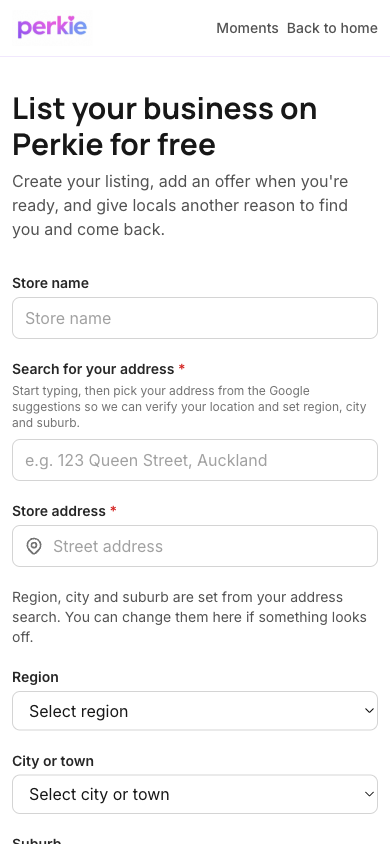
    The Perkie listing form, with store name and address
  2. Step 2

    Add how people can reach you

    Email and store phone are required. A website and a short description are optional. Pick the business type that fits, agree to the listing terms, then tap Get Started. Listing is free, and we check the details before it goes live.
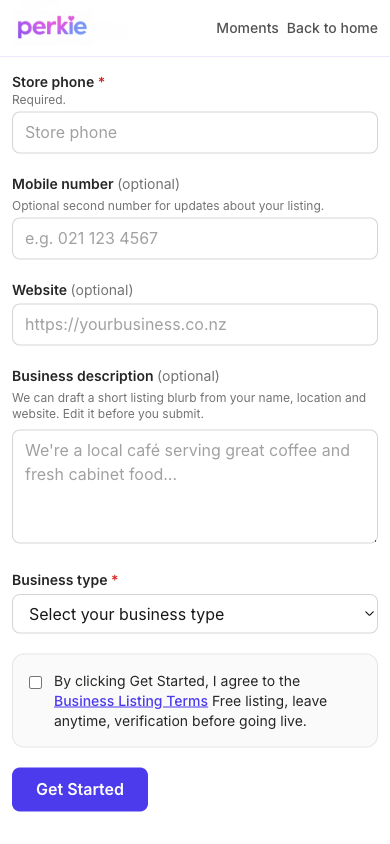
    Contact details, business type and the Get Started button
  3. Step 3

    Add an offer when you are ready

    Once you are in, you can add a member offer from your business tools. You do not have to put a discount on the listing.
Redeem an offer

Find a perk, then show it at the business.

Discover businesses
  1. Step 1

    Find a perk on Discover

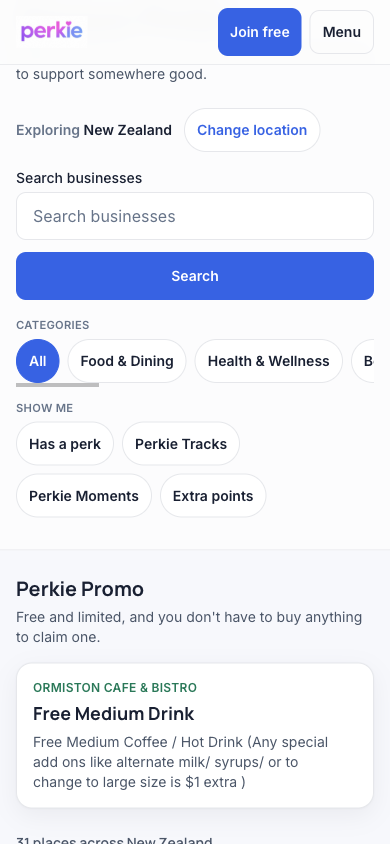
    Open Discover and search, or tap Has a perk. Pick a business you actually want to visit.

    Discover on a phone, with search and a live perk
  2. Step 2

    Open the business and tap the perk

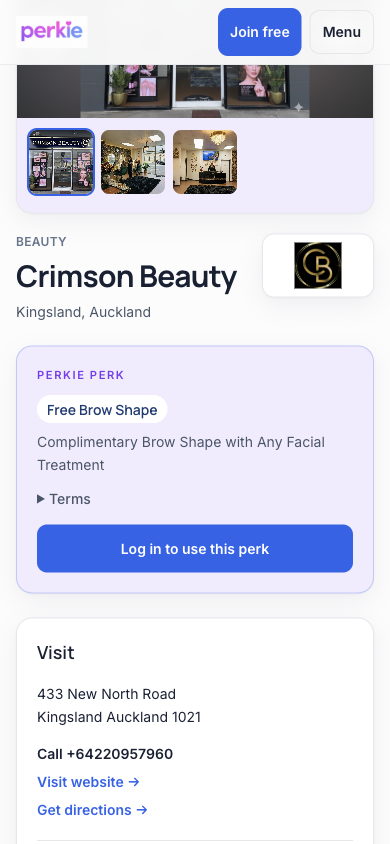
    On their page, tap Use this perk. If you are signed out, the button says Log in to use this perk. Sign in, then come back to the same button.

    A business page with a perk and a button to use it
  3. Step 3

    Show the code to staff

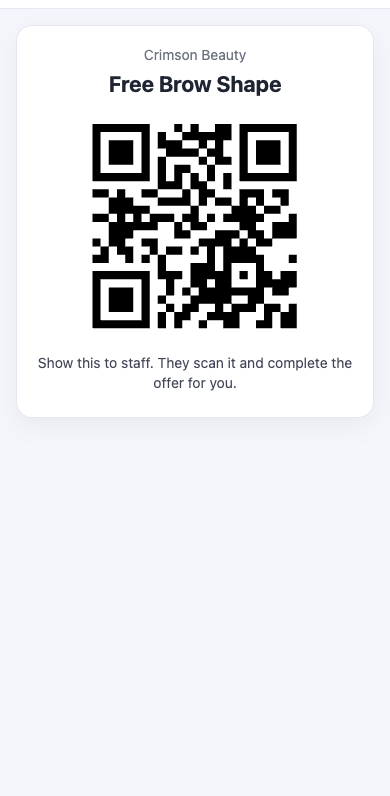
    A code appears on your phone. Show it to staff. They scan it and complete the offer. You still pay the business as usual. If they ask you to finish the offer on your phone instead, follow the steps on that screen.

    The offer screen members show to staff

Add Perkie to my phone

Put Perkie on your home screen so it opens like an app.

Open Perkie
  1. Step 1

    Open Perkie in the browser

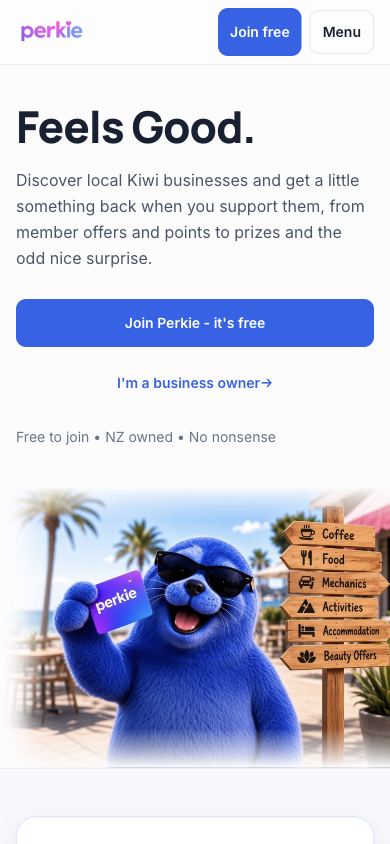
    On iPhone, use Safari and open perkie.co.nz. On Android, use Chrome.

    The Perkie homepage on a phone
  2. Step 2

    Add it to your home screen

    On iPhone, tap Share, then Add to Home Screen, then Add. On Android, open the browser menu and choose Install app or Add to Home screen.

  3. Step 3

    Open it from the new icon

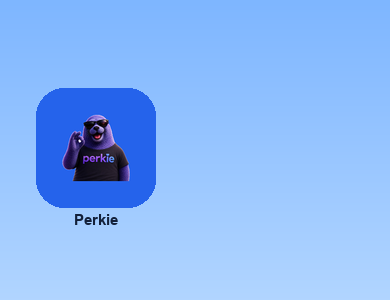
    Tap the Perkie icon on your home screen. Sign in there if it asks. That app does not keep the login from your browser tab. On iPhone, notifications only work when you open Perkie from this icon.

    The Perkie icon on a phone home screen

Turn on notifications

Get a ping for a Perkie Pop, and anything else you tick.

Turn on notifications
  1. Step 1

    Open Perkie from the home screen icon

    On iPhone, notifications only work from the installed icon, not from a Safari tab. Sign in there if it asks. If Perkie is not on your home screen yet, follow Add Perkie to my phone first.

    The Perkie icon on a phone home screen
  2. Step 2

    Open Notification settings

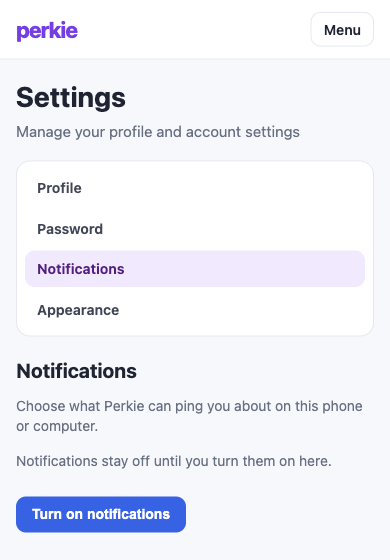
    Tap Account, then Notification settings. You can also open the person menu at the top and tap Notifications.

    Notification settings with the button to turn them on
  3. Step 3

    Allow them on this device

    Tap Turn on notifications, then Allow. This phone or computer should then say it is on. Ticking the boxes alone does not turn the device on.

  4. Step 4

    Tick Perkie Pop, then save

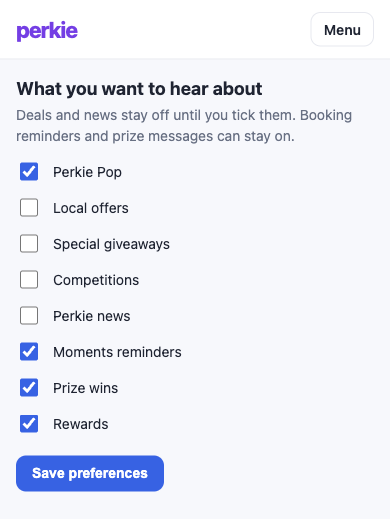
    Tick Perkie Pop if you want a ping when a Pop is on. Local offers, giveaways and Perkie news stay off until you tick them too. Then tap Save preferences.

    Notification topics, with Perkie Pop ticked

Redeem a member's offer

Scan their code at the till and finish the perk.

Open Redemption
  1. Step 1

    Open Redemption

    Sign in as the business, then tap Redemption in the menu. The scanner opens for that store.

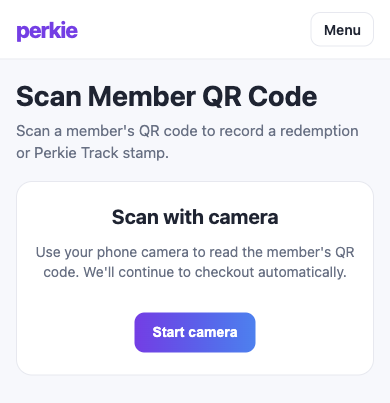
    The business scanner, with Start camera
  2. Step 2

    Scan what the member is showing

    Ask them to open the perk, or show their Perkie Card. Tap Start camera and scan the code. If the camera will not start, paste the link or type the 8-digit member code.

  3. Step 3

    Pick the offer and tap Redeem

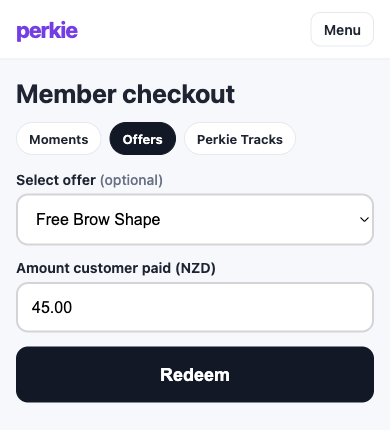
    On Member checkout, choose their offer, enter the amount they paid, then tap Redeem. The member pays you at the till. If the scan asks for a venue PIN first, enter the 4-digit PIN, then continue. Need to set or change that PIN? Follow Set your redemption PIN.

    Member checkout with an offer selected and Redeem

Set your redemption PIN

Create or change the 4-digit PIN staff use at the till.

Open Redemption settings
  1. Step 1

    Sign in as the business

    Use the business login for your listing. You need owner or manager access to change the PIN.

  2. Step 2

    Open Redemption settings

    In the business menu, tap Redemption. That page is where your venue PIN lives, alongside how Offers and Moments are redeemed.

  3. Step 3

    Enter a new 4-digit PIN

    Type the same PIN in New 4-digit PIN and Confirm PIN, then tap Save settings. Staff use this when they are not logged in, for Offers, Tracks, Moments, Pops, and Specials.

  4. Step 4

    Change or remove it later

    To change it, enter a new PIN and save again. To clear it, tick Remove PIN and save. Until a PIN is set, staff who are not logged in cannot finish a redemption that needs one.